No Coverage Alerts allow users to create rules that will notify managers in JM Connect when a scheduled location does not receive any clock ins during the specified time. The scheduled locations and their coverage levels will be displayed in the No Coverage Report at the end of the "day" defined for the locations.
Set Up No Coverage Alerts
To create a No Coverage Alert:
- Navigate to Customers > Manage Locations
- Click the Edit Pencil to the right of the desired location
- Click the No Show Alert check box in the middle of the page
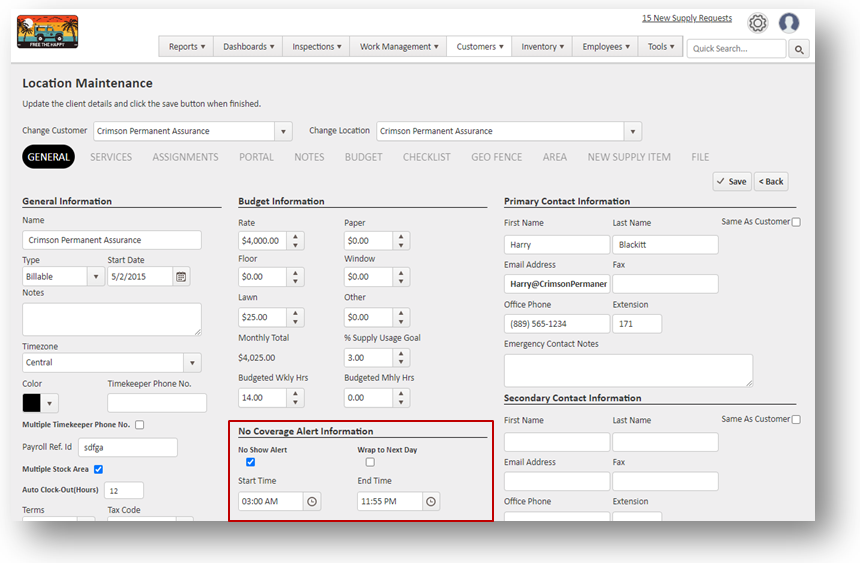
- Select the Start Time and End Time for the desired coverage period
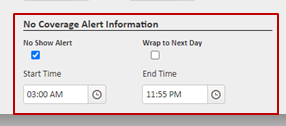
- If the desired coverage period extends from one day to the next, click the Wrap to Next Day check box.
- When finished, click the Save button for the Location record.
No Coverage Notification
All Managers that are trained on the location will receive the No Coverage notification in JM Connect at the end of the predefined "day"
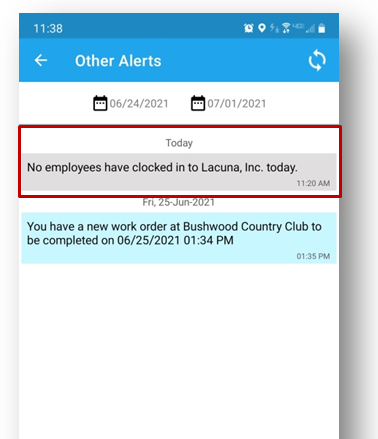
Tip: The No Coverage Alert will be sent at the end of the End of Day as defined in the set up. Make sure you allow time to recover if no Employees have clocked in and the Location has not been serviced.
No Coverage Report
For more information, or to send in a request to the Janitorial Manager support department, use the red 'Help' button in the bottom right corner of any Help Desk article.
Comments
0 comments
Please sign in to leave a comment.