Approving Pending Time Punches
It is recommended that Timekeeping Managers check pending time punches on a daily basis. Pending punches will be more frequent towards the beginning of implementation, but they will decrease as your employees get comfortable with using the clock-in and clock-out options.
Pending punches do not appear as valid time on Payroll. To learn about mass approving pending punches, click here.
Where to Look for Pending Time Punches
Editing and Approving Pending Time Punches
Reasons why a Time Punch may be Pending
Where to Look for Pending Time Punches
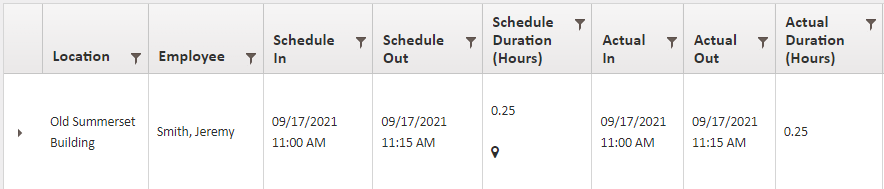
Timecard Report - This report shows both the Actual In and Out times compared to the Scheduled In and Out times.
Clock In/Clock Out Report - This report shows the Actual In and Out times as separate entries and includes more information as to why a punch may be pending.
Editing and Approving Pending Time Punches
- Navigate to either report listed above (Timecard or Clock In/Clock Out report).
- Pending time punches are indicated with red text.

- Selecting the Show Pending checkbox will only show pending punches.

- Selecting the Show Pending checkbox will only show pending punches.
- Click the Edit Pencil for the pending time punch.
- Make any needed adjustments.
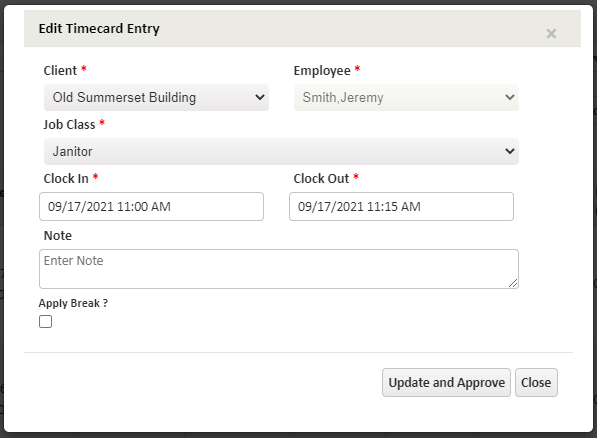
- Click Update and Approve to save changes. Approved and Pre-approved time punches will be shown in black text.
Overlapping Time Punches
Since employees can only be clocked in at one location at a time, employee time punches cannot overlap.
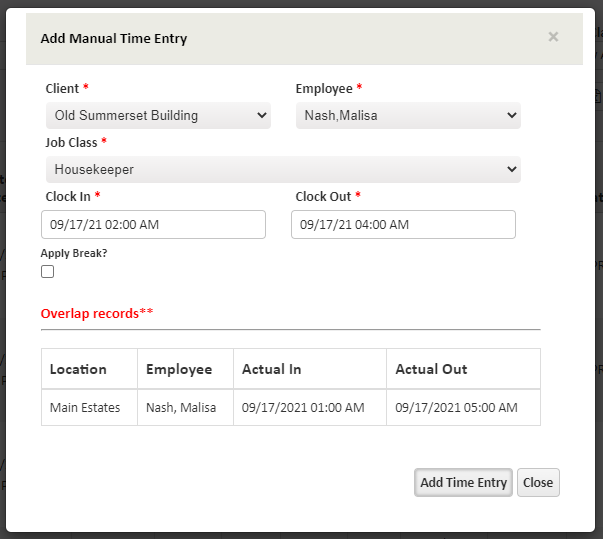
If a time punch is being added manually and the in and out times are during another punched shift, the overlap records will appear at the bottom of the screen.
In the example below, the 2 AM to 4 AM shift cannot be added because the employee was already working at a different location at the same time (1 AM to 5 AM).
When editing a time punch, the error below will occur if there is an overlapping record.
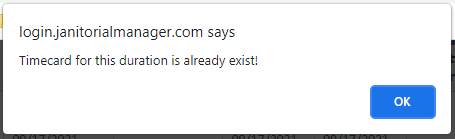
In both cases, the overlap issue would need to be fixed before the time can be added successfully.
Timecard Audit Log
Any time punches that have been edited will create an entry in the Audit Log Report. Edited time punches will also have an eye icon next to them, which will open a preview of the report.

The Timecard Audit log will show which field was changed, the old and new values, the date it was modified on, and who modified it.

Full details can be accessed by visiting the Audit Log Report (Reports > Time > Audit Log Report).
Reasons why a Time Punch may be Pending
Missing Time - Once an employee has clocked in, the time punch will remain pending until they clock out. In this case, the Actual Out time will be listed as Missing.
Manual Entry - If an employee used the Forgot to Clock In/Out option (if enabled), the time punch will be listed as pending. In this case, the Time Entry will be listed as Manual.
Manual + Call In - The employee used the Call-in option, but the phone number they called from did not match the Timekeeper Phone Number saved on the Location Maintenance screen. The Time Entry will be listed as Manual, and the Source will be Call-in.
Outside Fence - The employee clocked in or out from outside the GeoFence. The Geofence information will be listed as Outside Fence.
No GPS Information - The employee's location was not tagged by GPS when they clocked in/out. The Geofence information will be listed as No Geo Location Found.
For more information, or to send in a request to the Janitorial Manager support department, use the red 'Help' button in the bottom right corner of any Help Desk article.
Comments
0 comments
Please sign in to leave a comment.