How to Make Changes After You Process Payroll
If you have processed payroll already and something on the Payroll reports looks incorrect, you may need to make changes to one of the Timekeeper Reports. However, you first have to rollback the payroll cycle so the changes you make can be added to the reports and re-calculate the totals.
*Note, If you are using QuickBooks Online please stop and review here before clicking rollback.
Rolling Back the Payroll Cycle
This will open the payroll cycle back up and allow for additional changes to be applied to Timekeeper reports.
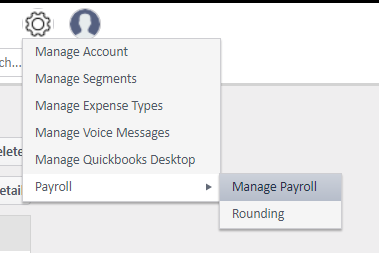
- Scroll over the Gear icon
- Scroll over Payroll
- Select Manage Payroll
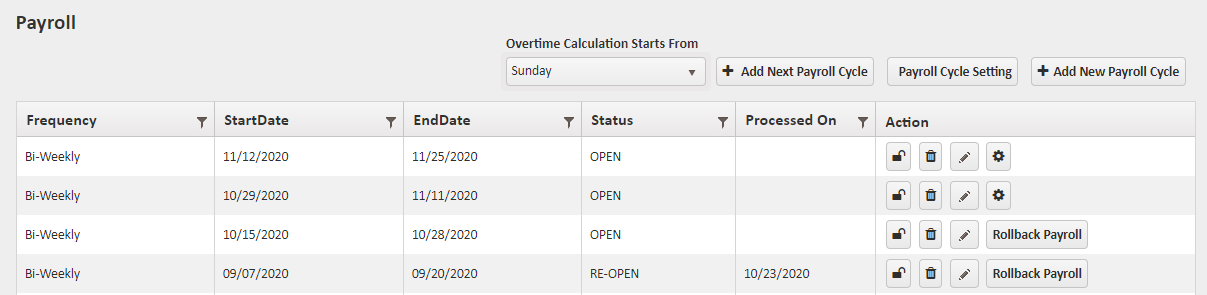
- Locate the right Payroll Cycle
- Click the Rollback Payroll button.
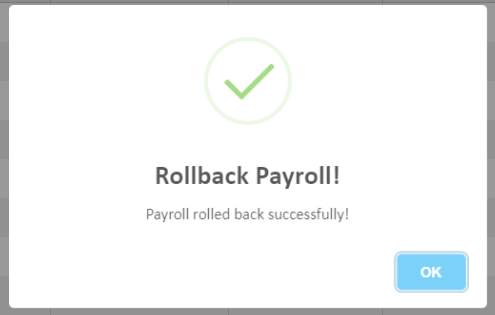
- Click OK on the popup stating payroll has successfully been rolled back.
Making Changes After Payroll has been Rolled Back
During this time, you can make any of the following changes:
- Approve or decline pending time punches
- Edit the time/job class/wage on time punches
- Refresh or edit travel detail
- Add or edit PTO
- Add or edit location or employee-specific rounding
- Edit the overtime calculation day of the payroll cycle
Processing Payroll Again After Changes are Complete
Once changes have been made to the Timekeeper reports, go back to Manage Payroll and re-process the payroll cycle by clicking the gear icon. This step must be completed before the Payroll reports will show the changes you just made.
Reference the Processed On column to see the last date payroll was processed. If you know you have made changes between the date listed in the Processed On column and today's date, roll the payroll cycle back and click the process icon again.
Once all changes have been made, the payroll reports are final, and employees have been paid, we recommend locking the payroll cycle by clicking the lock icon. This action can be undone with the unlock icon should any additional changes need to be made for any reason.
For more information, or to send in a request to the Janitorial Manager support department, use the red 'Help' button in the bottom right corner of any Help Desk article.
Comments
0 comments
Please sign in to leave a comment.