Personalized Voice Messages
Voice Messages allows users to create recorded or automated audio messages for delivery through the timekeeping call-in system. When an employee clocks in by calling in, they will hear any new messages. Messages can be Global, Location-specific, or Employee Specific. Messages can vary from anything to general announcements to specific tasks that need to be performed at a location that day.
These messages are currently not delivered to employees that clock in through the app.
Accessing Personalized Voice Messages
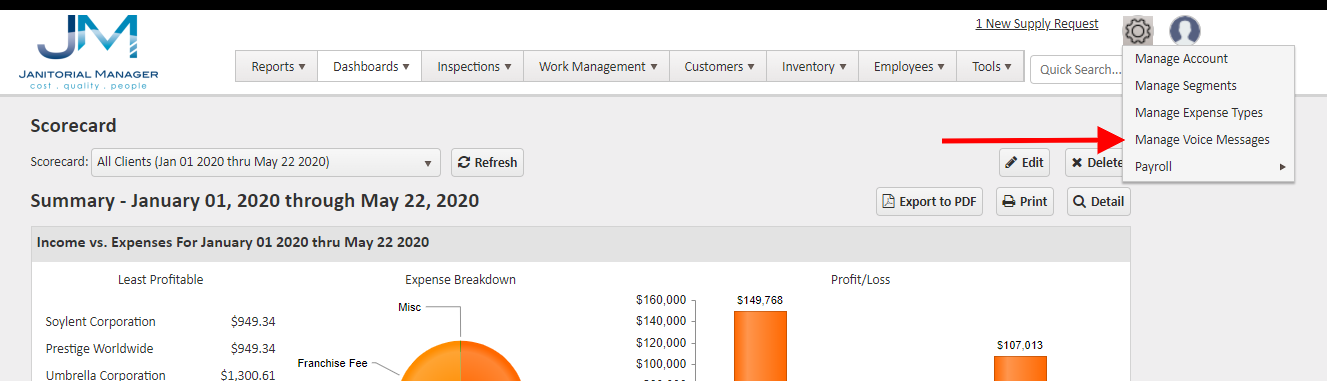
- To create or manage existing voice messages, click on the gear in the upper right-hand corner, and select Manage Voice Messages.
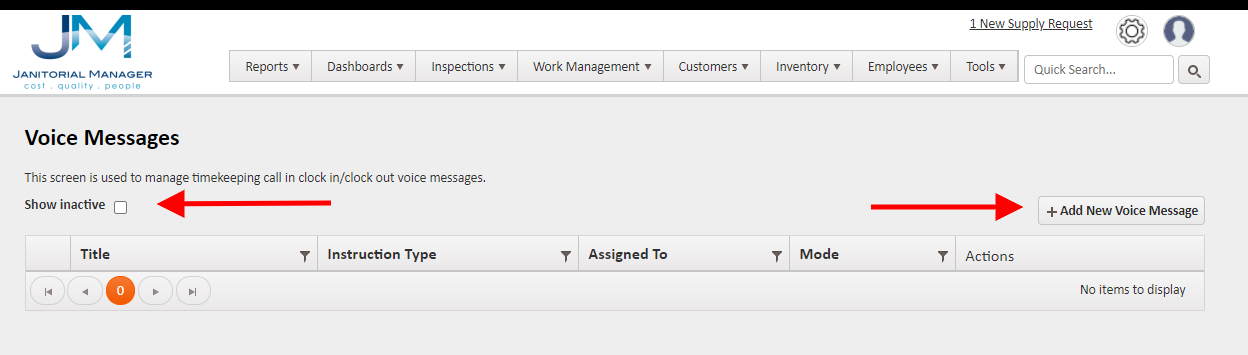
- To add a new message, select Add New Message. Active messages will be listed and Inactive messages can be viewed by clicking Show Inactive. Messages are Active until deleted. After deletion, they will show under Show Inactive.
Creating A New Message
After clicking Add New Message, the form will appear as below
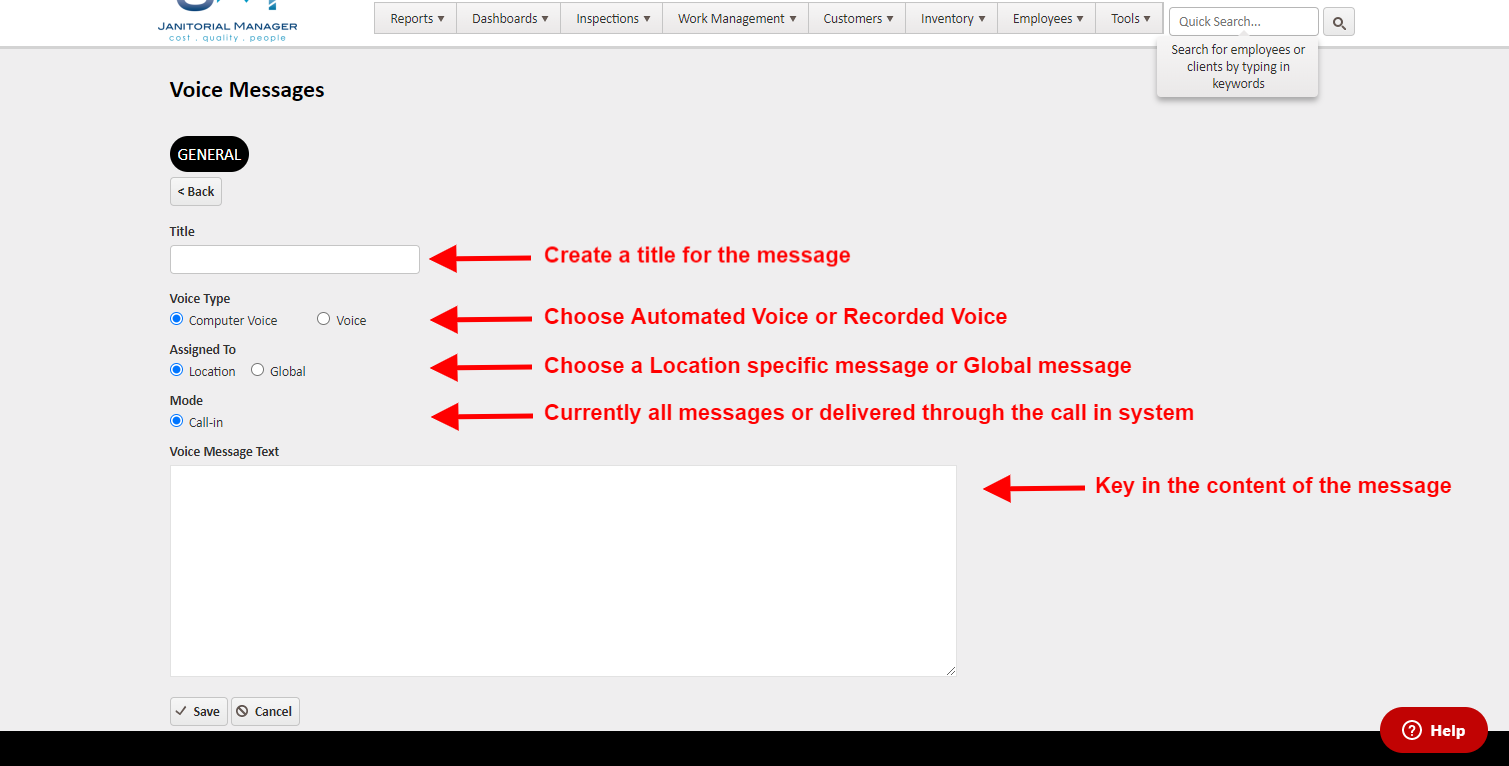
- Add a message title.
- Select Computer Voice (automated text to voice) or Voice (pre-recorded audio file).
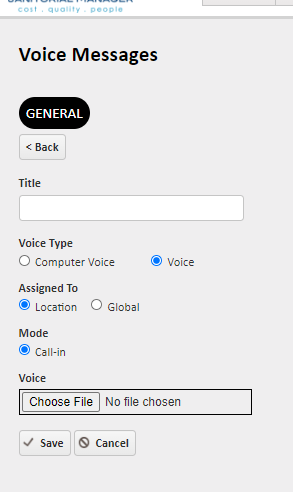
- Choosing Voice requires a pre-recorded voice file in MP3 format. (See Below)
- Choose Location (message will be delivered to employees assigned to the selected location or specific employees at that location) or Global (delivered to all employees who call in to clock in).
- Click Save to deploy the message.
Uploading an MP3 Voice Message
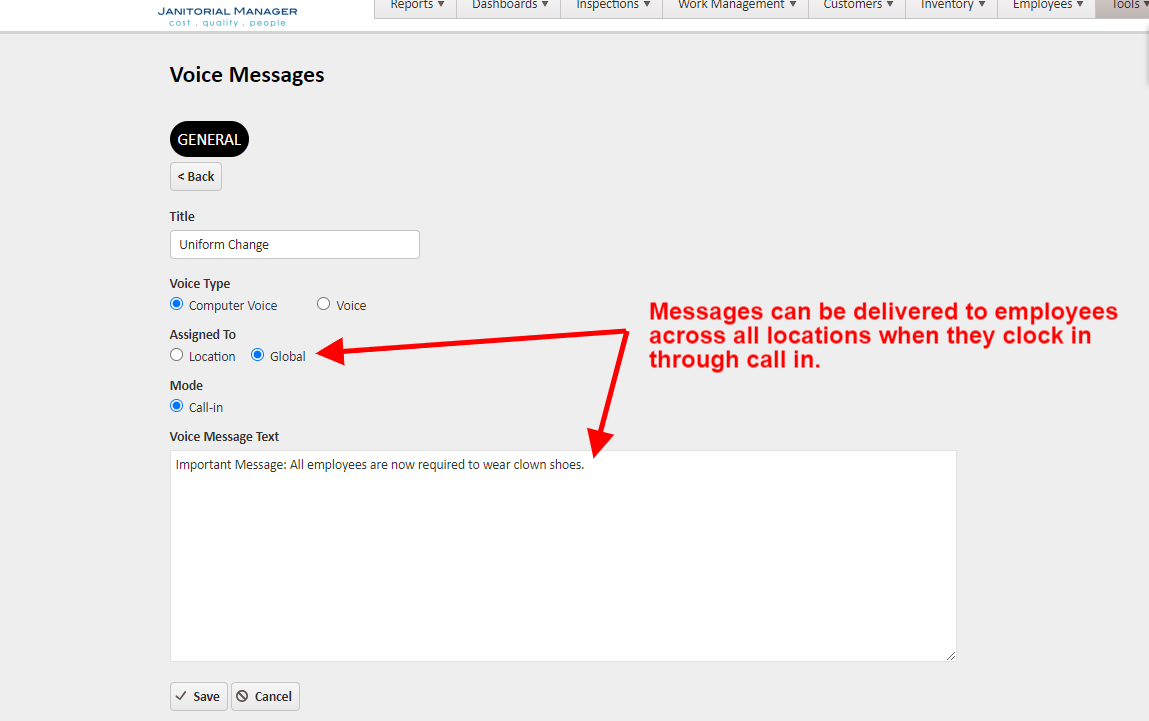
Global Message
Select Global to deliver a message to all employees across all locations.
Location Specific Message
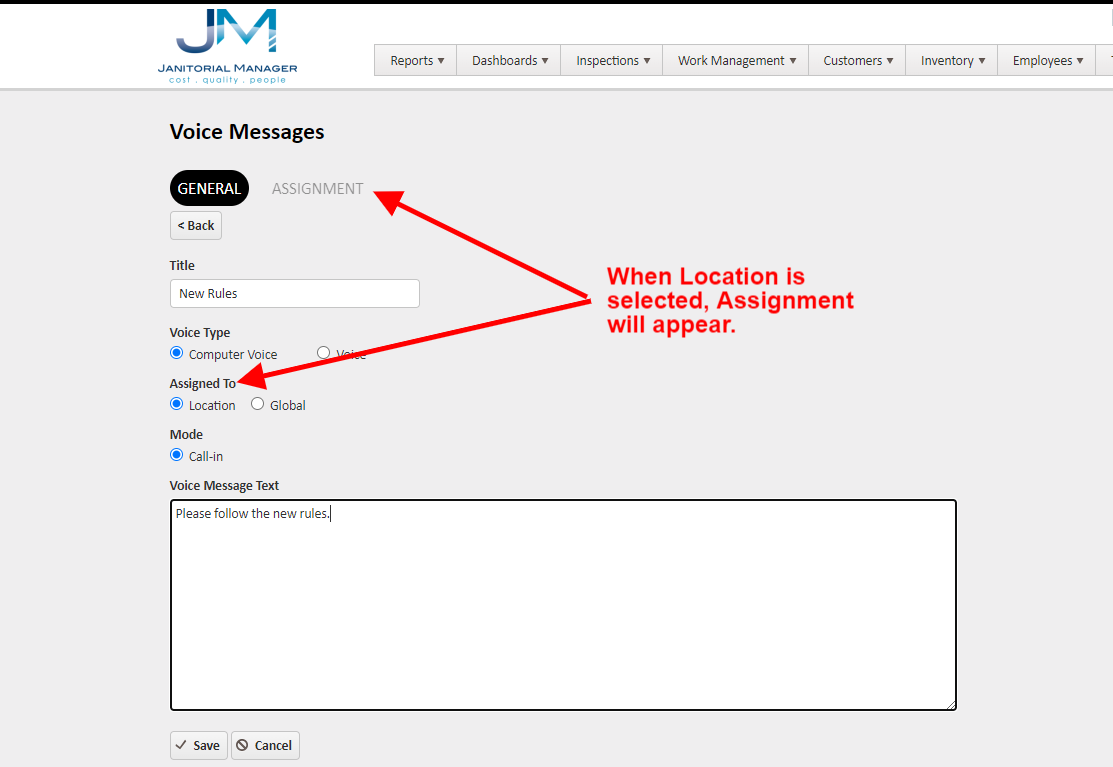
Click Assignment to assign the message to all employees at a location or a specific employee at that location.
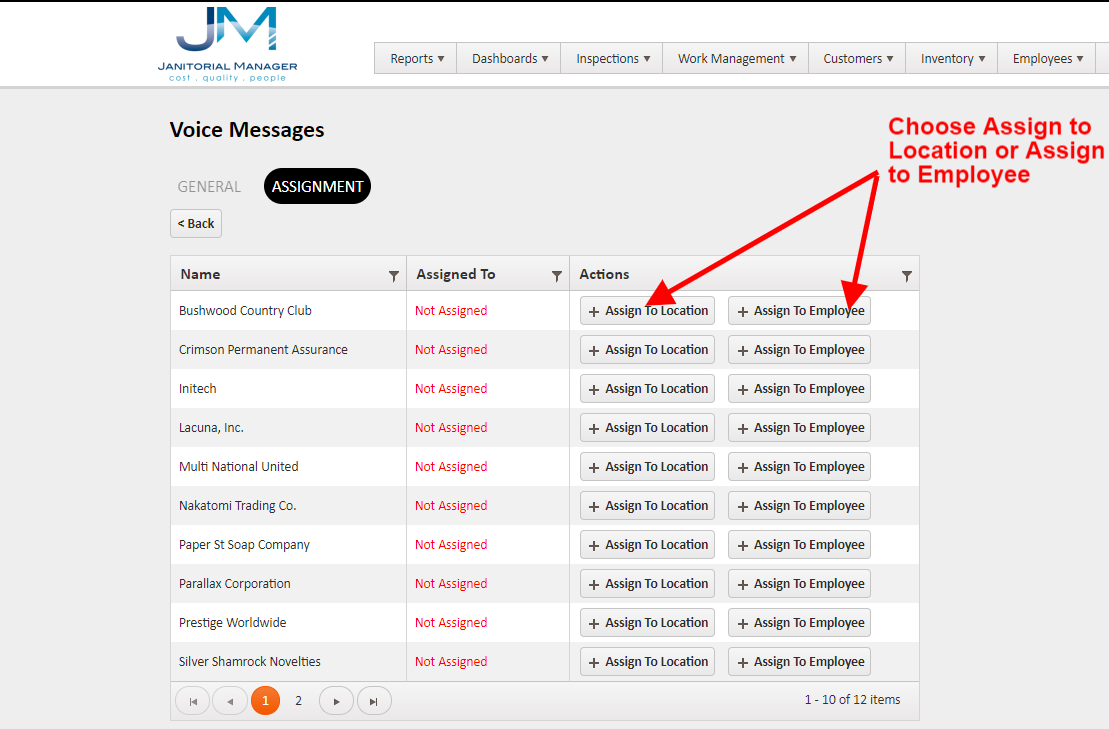
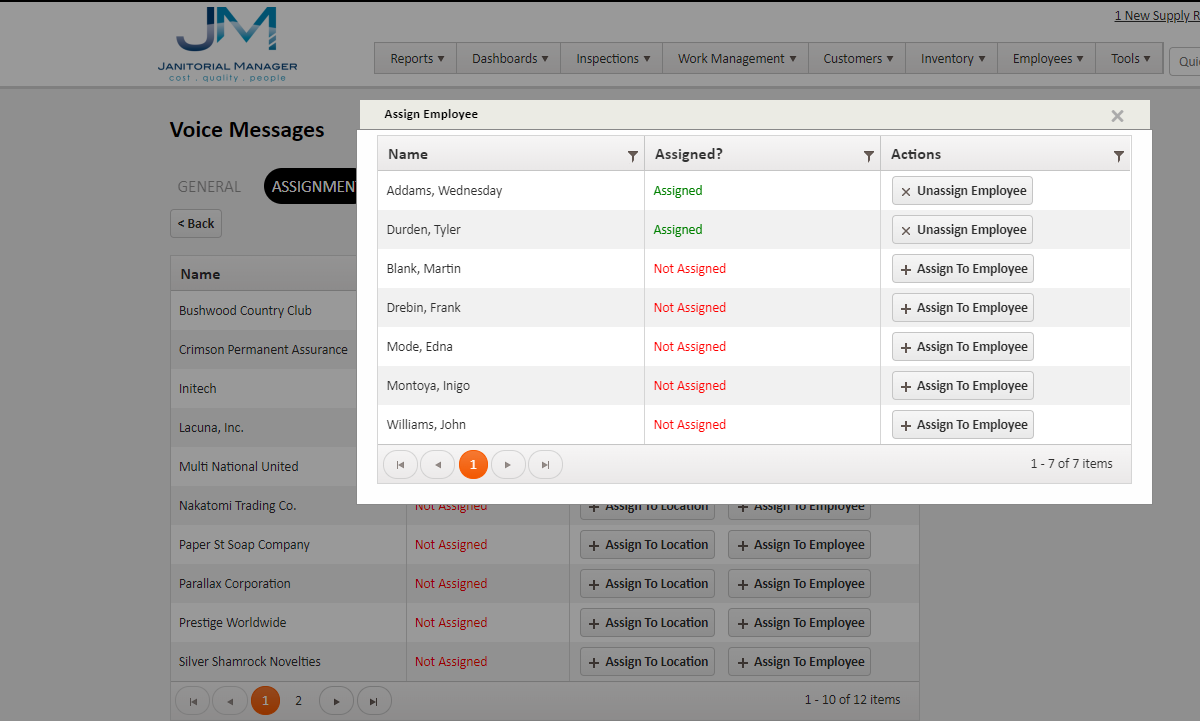
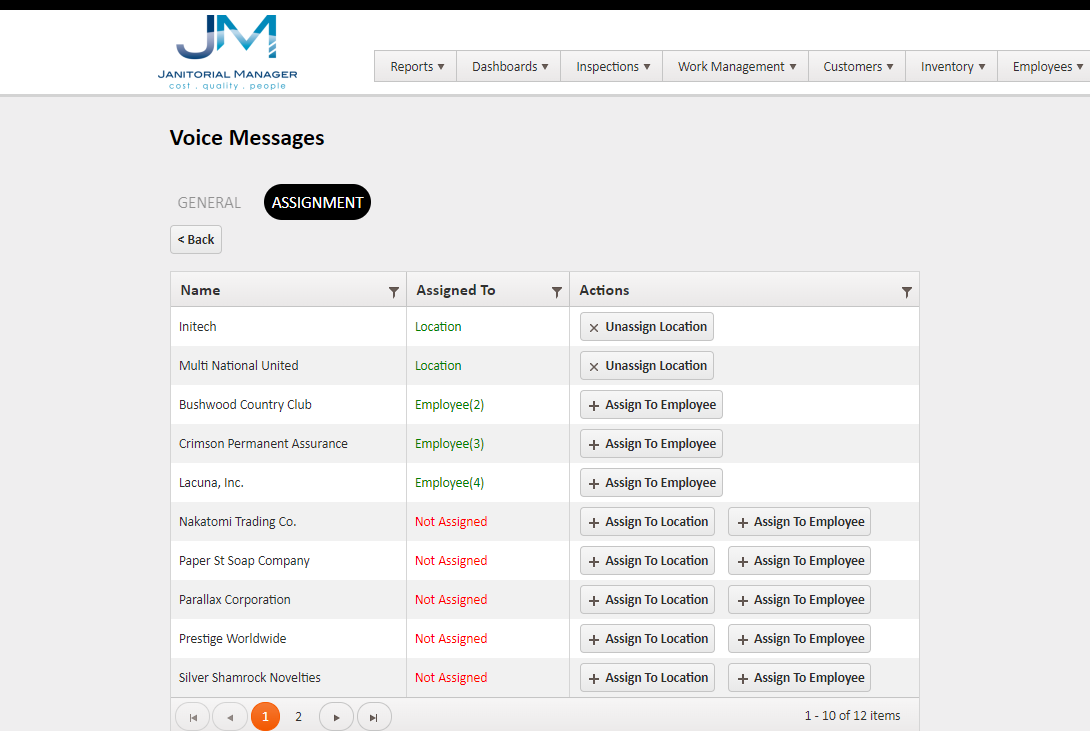
You can select one or more locations to assign the message to by clicking on the desired Assign to Location buttons, or select Assign to Employee for a desired location. Select any number of employees from the list of employees currently assigned to that location.
Assign To Locations
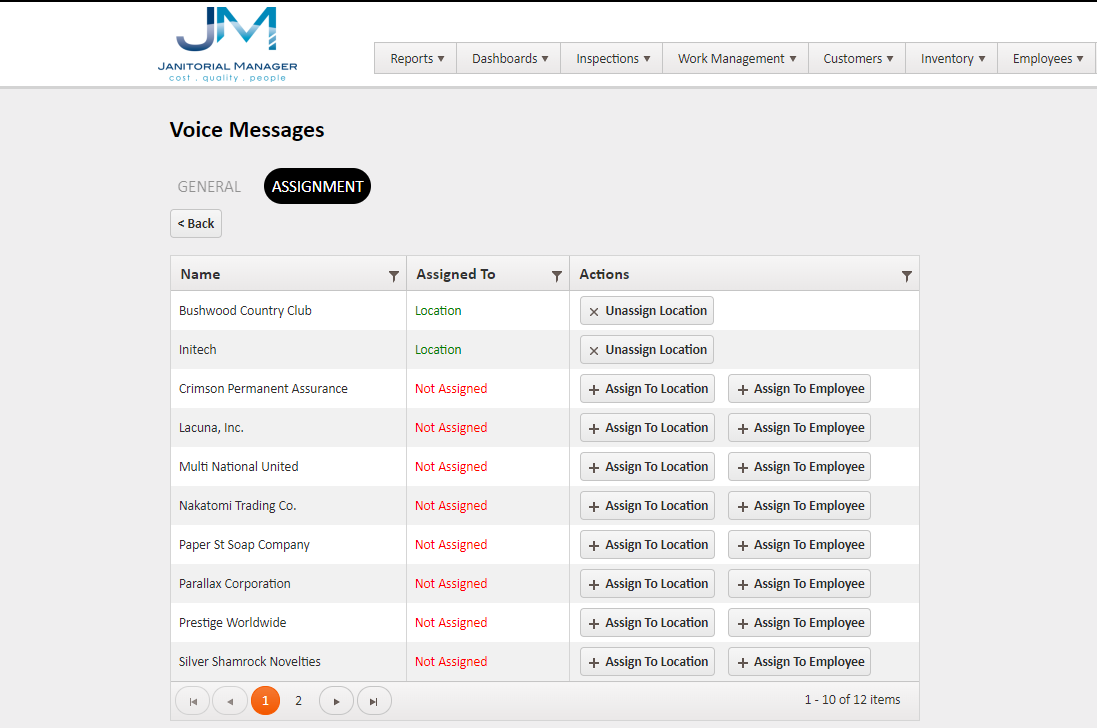
Assigned locations will move to the top of the list and appear in green. Locations can be unassigned by clicking on the Unassign Location button.
Assign To Employee
To assign a message to a specific employee at a location, click the Assign to Employee button. A list of employees associated with that location will appear. Select the employees to receive the message by clicking on Assign to Employee for all desired employees. To unassign, click the Unassign Employee button.
Messages can be assigned to any number or combination of Locations and individual Employees.
Editing or Deleting Voice Messages
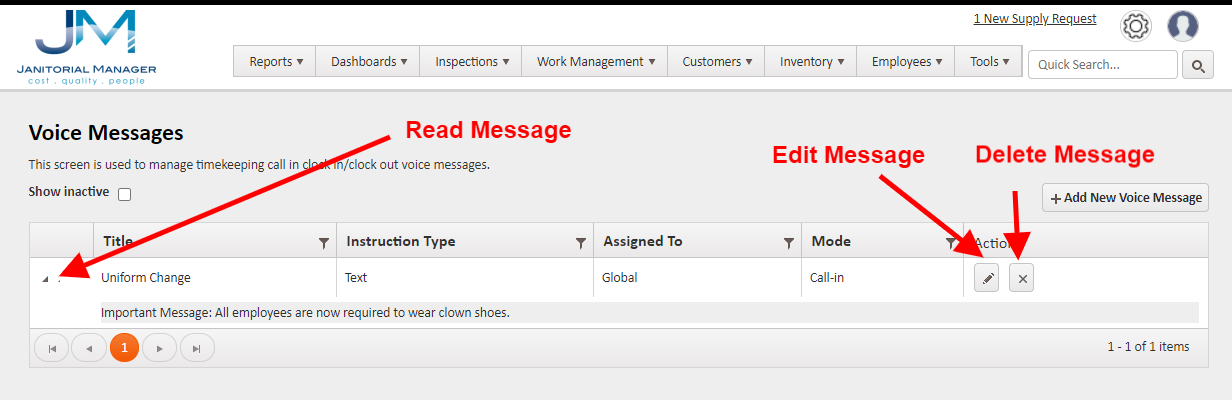
Clicking the dropdown arrow on the left reveals the message content.
The Message can be edited by clicking the edit pencil on the right.
The message can be made inactive by clicking the X button on the right.
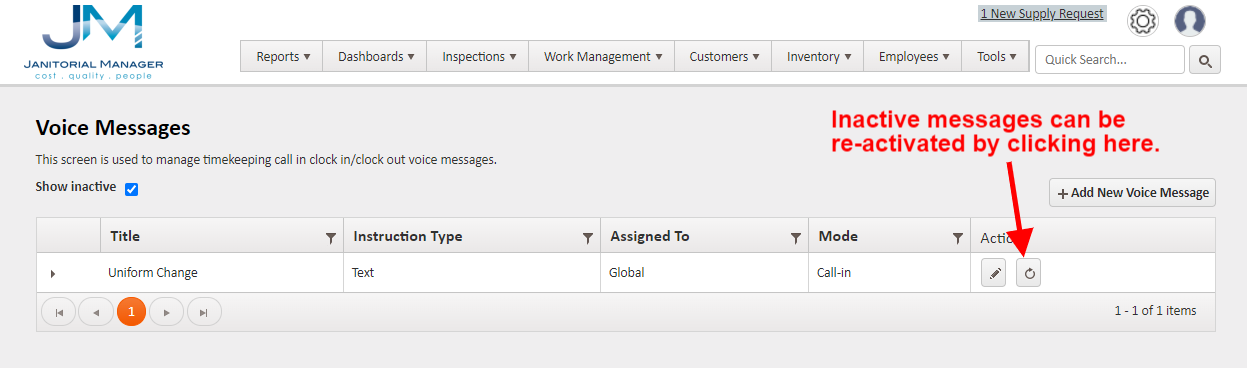
Inactive messages can be reactivated by clicking show inactive and clicking the reactivate button.
Click here for more information on How the Prompt Works.
For more information, or to send in a request to the Janitorial Manager support department, use the red 'Help' button in the bottom right corner of any Help Desk article.
Comments
0 comments
Please sign in to leave a comment.