Auto Clock Out
Janitorial Manager will automatically clock out employees after a given amount of time. The amount of time is determined by you. The system will first look for the Schedule Setting, if there is no Auto Clock Out entered, it will move on to the Location Setting, and on to the Default Account Setting.
Default Company Account Setting
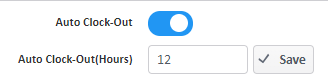
By default, all employees will be clocked out if a shift exceeds 12 hours. This company default can also be changed by navigating to Settings > Manage Account > Timekeeper > Auto Clock Out
Location Setting
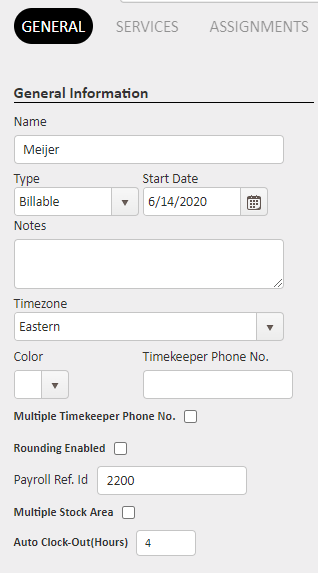
The auto clock out can be adjusted per location, which will override the default 12-hour or Company level setting. You can edit the auto clock out setting for each location under the General tab when editing a location record. To find the setting, navigate to Customers > Manage Locations > Select the edit pencil for the location you wish to edit.
Shift Setting
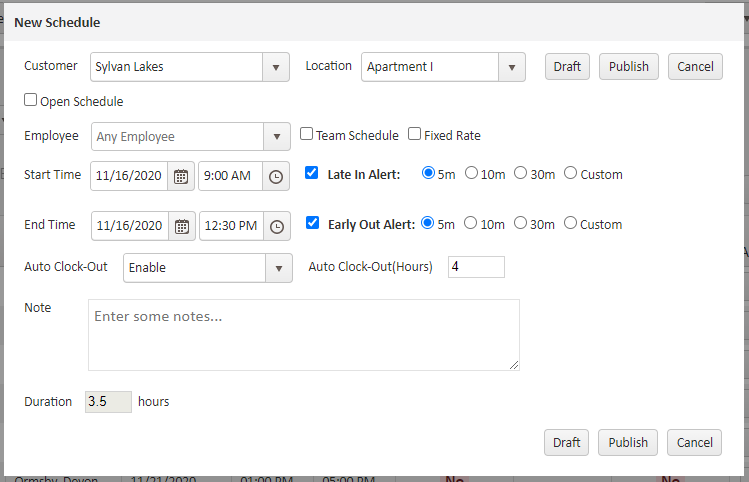
The auto clock out can be set for a particular shift, which will override any location settings in place and the default 12-hour or Company setting. To add auto clock out to a schedule, make your way to Customers > Manage Schedule. Here you can add a new schedule or edit an existing schedule to include or adjust the auto clock out setting.
For more information, or to send in a request to the Janitorial Manager support department, use the red 'Help' button in the bottom right corner of any Help Desk article.
Comments
0 comments
Please sign in to leave a comment.