Adding Signatures to Quality Checks
Adding signatures to Quality Checks allow inspectors to receive confirmation from the client and sign off on their own Quality Checks.
Adding Signatures from JM Connect
Adding Signatures from JM Connect
- On JM Connect, select the My Quality Checks icon.
- Swipe to the left on a completed Quality Check and select the checkmark.
- Click here to learn more about completing Quality Checks from JM Connect.
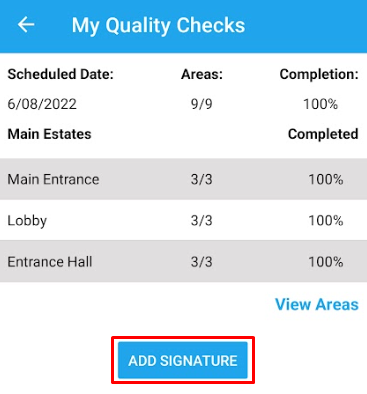
- Select the Add Signature button.
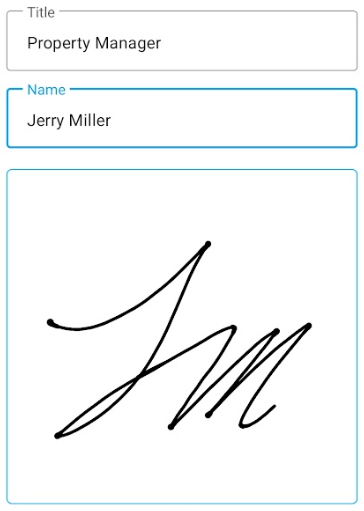
- Add the required information:
- Title - The work title of the person signing (inspector, property owner, etc.).
- Name - The name of the person signing.
- Signature - A signature can be added by drawing on the screen with your finger or stylus. To redo the signature, select the Clear button.
- After all fields have been added, select the Save button.

- To add another signature, select the arrow on the left-hand side of the screen and repeat steps #4 and #5. Up to three signatures can be added to a Quality Check.
Viewing Signatures
Signatures can be viewed from both JM Connect and the web.
Viewing from JM Connect
- On JM Connect, select the My Quality Checks icon.
- Swipe left on a completed Quality Check.
- If a signature has been added, the Signature icon will be present. Select the icon to view the signatures.

- If more than one signature has been added, use the arrow on the left-hand side of the screen to scroll through.
Viewing from the Web
- From the portal, navigate to Inspections > Manage Quality Checks.
- Quality Checks with added signatures will have the Signature icon in the Actions column. Select the icon.

- Added signatures will appear in the popup window.
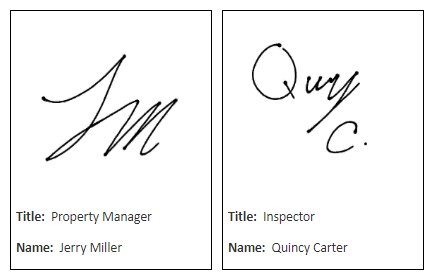
- Signatures will also be present on the Quality Check summary when printed or emailed.
For more information, or to send in a request to the Janitorial Manager support department, use the red 'Help' button in the bottom right corner of any Help Desk article.
Comments
0 comments
Please sign in to leave a comment.