Scanning QR Codes on JM Connect as a Client
If the account has Area QR Codes, clients can scan QR Codes on JM Connect. Allowing Clients to scan QR Codes will help them feel informed and connected to your cleaning operations.
Tip: If you are unsure which version of QR Codes you have, contact your Account Manager or Sales Representative.
Getting Started
- On JM Connect, log in as a Client.
- Clients will use their Customer Portal credentials when logging into JM Connect.
- Select the location that you'd like to scan the QR Code at.

- Select the Scan Area icon.
- Point the device's camera at the QR Code to scan it.
Scanning Private Codes
Private QR Codes have the App Scan Type on the portal site. Private codes are beneficial because they can only be scanned by employees and those who have Customer Portal logins.
When a client scans a private QR code, they are able to see...
- The name of the area.
- When the area was last used.
- When the area was last cleaned.
- Who cleaned the last area.
If the area has been marked as Clean, they are able to...
- Report an area as clean or not clean.
- Mark the area as in use.
- Clients can use this option when they are ready to start using the room. When they have finished using the room, scanning the code again will allow them to select Complete Usage.
- View other areas that are currently marked as clean.

If the area is marked as Not Clean, they are able to...
- Remind cleaners that the area is not clean.
- Selecting Remind Cleaners sends a notification to Managers that are trained in that area.
- Use the area anyway.
- Even if the room is marked a Not Clean, the client can still indicate that they are using the area. Scanning the code again will allow them to select Complete Usage.
- View areas that have been marked as Clean.

Client Messages
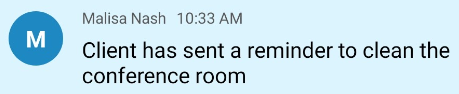
Clients are able to use the Client Message feature to directly communicate with Managers who are trained in that location.
- If Cleaning Notification is enabled for the QR code, an automated message will be sent every time an area has been updated to clean/not clean.

- Selecting Remind Cleaner when an area is dirty will send a message reminding Managers to revisit the area.
For more information, or to send in a request to the Janitorial Manager support department, use the red 'Help' button in the bottom right corner of any Help Desk article.
Comments
0 comments
Please sign in to leave a comment.