Adjusting the Blue Location Pin on Geo-Fence
Are you getting a lot of pending time punches for a specific location? Are your employees having trouble clocking in or out? It might be due to the Geo-Fence and blue location pin set for the location.
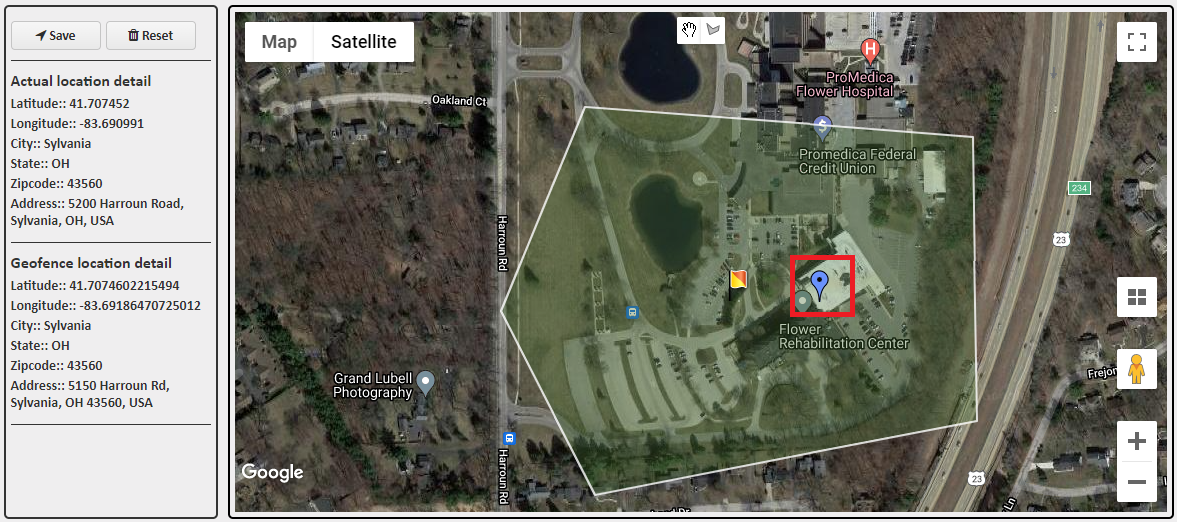
The Yellow and Red Flag designates the central location of the Geo-Fence. The Blue Pin designates the actual location of the address. In some cases, the Blue Pin may be outside of the fence, like the example shown below:
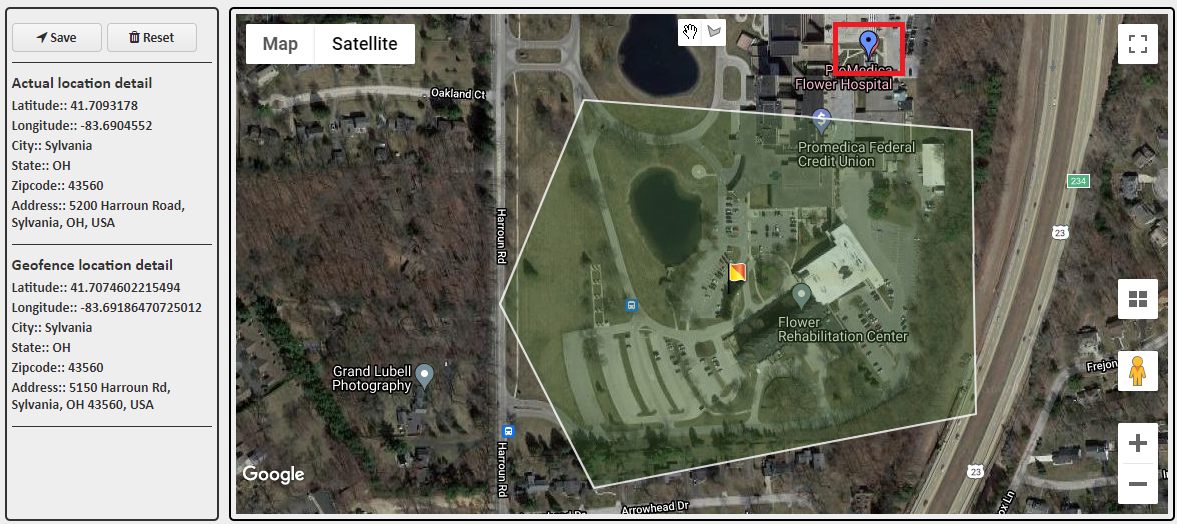
The blue pin outside the drawn geofence can be what's causing problems clocking into that location when you are, in fact, on location.
To move the location of the Blue Pin:
- Copy the location's address.
- Open Google Maps in a separate tab or window. In the field that says 'Search Google Maps', paste the address and press Enter to search.
- On the bottom left-hand corner of the map, press the Satellite option to switch to that view.
- Use the zoom buttons at the bottom right-hand corner to zoom into the map until you have a clear view of your location.
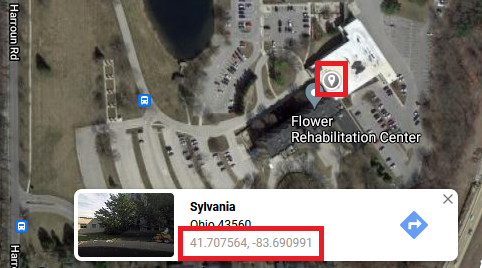
- Once you are looking at the location on the map, left-click an area of the building once. A small gray pin will appear where you clicked on the map. The latitude and longitude of that pin will generate in a popup at the bottom of the screen. Clicking on the coordinates will bring up a panel on the left-hand side.
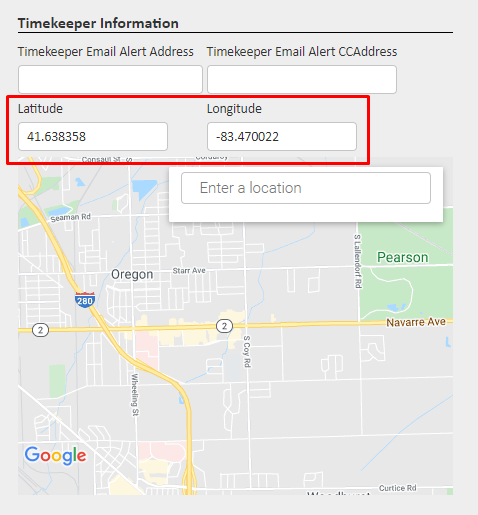
- Go back to your Janitorial Manager window and navigate to the General tab for that location. If you scroll down, you will see Timekeeper Information at the bottom right-hand corner. Copy and paste the new Latitude and Longitude coordinates into the fields. Scroll up and press the Save button to finalize your changes.
- Navigate back to the location's Geo-Fence tab. You will now see that the blue pin has moved to the new coordinates, and is within the fence.
For more information, or to send in a request to the Janitorial Manager support department, use the red 'Help' button in the bottom right corner of any Help Desk article.
Comments
0 comments
Please sign in to leave a comment.