Performance Review Setup and Use
Setting up Performance Reviews
Performance reviews are made up of a series of Performance Dimensions. Dimensions are the categories/subjects to be considered in a Performance Review.
To create your Performance Dimensions:
- Go to Employees > Manage Performance Dimensions
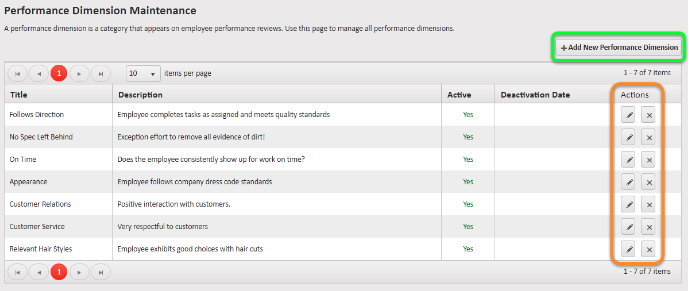
- Click +Add New Performance Dimension (Green Box in screenshot below)
- Enter a title and a description
- Click Save
To edit an existing performance dimension, use the edit pencil. To delete an existing performance dimension, use the x button. (orange box in the screenshot below)
Completing a Performance Review
- Go to Employees > Performance Reviews
- Find the Performance review you wish to complete on the list and click the start button in the actions column
- Fill out the review by entering and updating data in all the white boxes
- The left side of the form is all the overview or summary information. The right side of the form has the ratings and comments on the Performance Dimensions you created during the setup.

- Click Save when finished
- You must fill out every field for the system to recognize this initial step as complete. If you are missing data in any fields the review will save as a draft.
- The browser will prompt you with a pop-up message asking if you are ready to mark the evaluation as “ready to review”
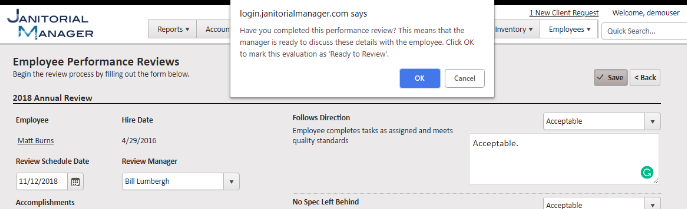
- Click OK to confirm
- Now that the performance review is fully filled out, your evaluation status will be updated to “Ready for Review” (Blue box in the screenshot below). You can now go through the performance review with your employee.
- You will also see a new button available in the Actions column for that employee labeled “Discussion Complete” (Red box in the screenshot below)

- The discussion complete pop-up will open so you can finalize and make final changes to the performance review (Screenshot Below)

For more information, or to send in a request to the Janitorial Manager support department, use the red 'Help' button in the bottom right corner of any Help Desk article.
Comments
0 comments
Please sign in to leave a comment.