Reset Passwords
If a user forgets their password, they can temporarily use the Forgot Password steps on JM Connect, or an account administrator with Web access can reset the password for the user on the website.
How to Reset your Password
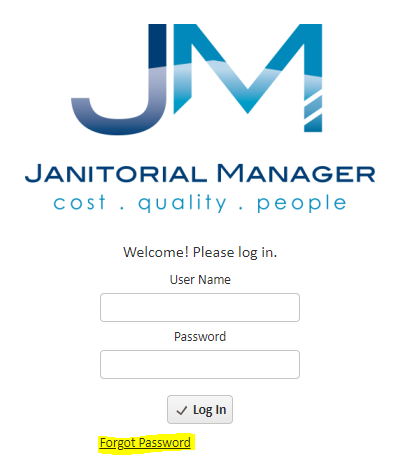
- Go to the JM Login Page
- Click Forgot password below the login button
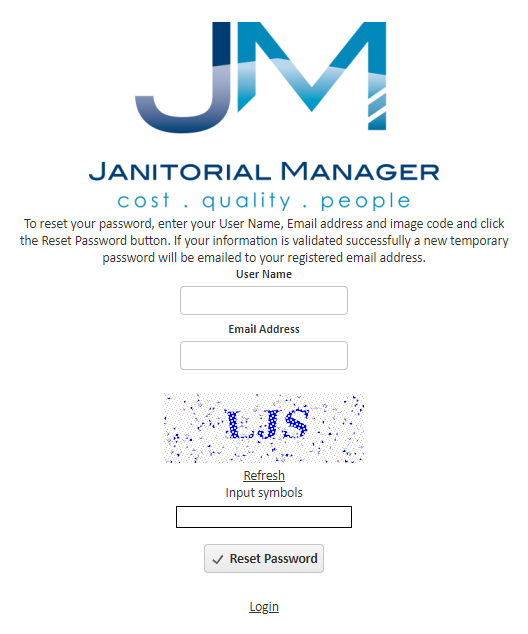
- Follow the instructions on the password reset page
- Enter Username, email address, and the Captcha code provided
- Click Reset Password button
How to Reset a User's Password
There are 2 methods to reset a user's password: Set a password for the user, or send an automated reset password email to the user.
Set a password for the user
- Go to Employees > Manage Employees
- Click the Edit button on the employee's row
- Under the User Information header, type in a new password in the Set Password box
- Save the change at the top right of the page
- Tell the employee their new password
*You can also copy the password into the Notes section above to prevent having to reset the password again in the future.

Send an Automated Password Reset Email
This method will send a reset email to the employee's email address saved on JM. If they don't have access to that email, update the email address before sending the password reset.
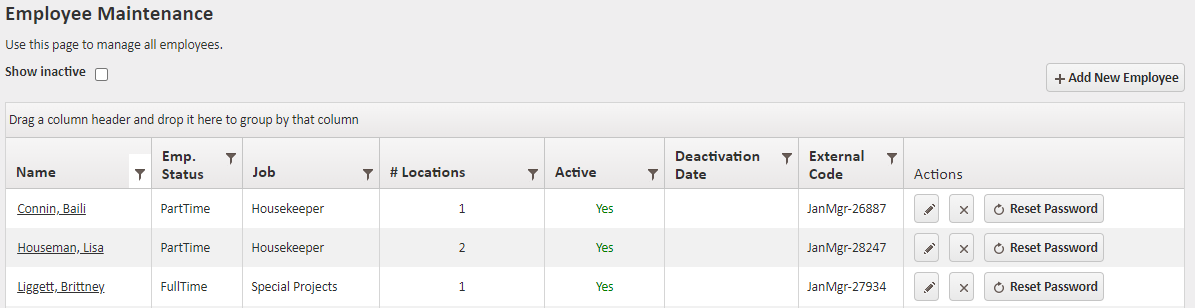
- Go to Employees > Manage Employees
- Click the Reset Password button on the employee's row
- This will send them an email and invite them to reset their password.
For more information, or to send in a request to the Janitorial Manager support department, use the red 'Help' button in the bottom right corner of any Help Desk article.
Comments
0 comments
Please sign in to leave a comment.