Travel Time Payroll Settings
Job Class for Travel
- Go to Employees > Manage Job Classifications
- In the New Job Classification text box, type in Travel or Travel Time or Drive Time. However you classify travel.

- Click Save
Include Travel on Payroll switch
- To turn on the switch that adds Travel Time entries to Payroll reports, scroll over the Gear icon > select Manage Account
- Click on the Timekeeper sub-tab
- Find the grey switch labeled Include Travel On Payroll and turn it ON

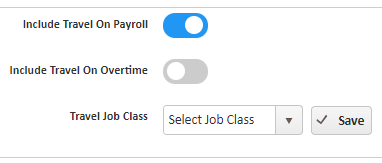
If the Include Travel on Payroll switch is turned ON
Employee Payroll reports will show accumulations for:
- Travel Hours = The sum amount calculated by Google Maps or edited by you on the Travel Report before pushing to Payroll
- Travel Paid = Travel Hours x Employee Default Wage Rate
If the Include Travel on Payroll switch is turned OFF
- Travel Hours and Travel Paid will = 0 on Employee Payroll reports
Travel Overtime Settings
The Include Travel on Overtime switch determines the way your employees' travel will factor into their Regular Pay amount for each week of the pay period, starting on your chosen Overtime calculation day.
Include Travel on Overtime switch
- Scroll over the Gear icon > select Manage Account
- Click on the Timekeeper sub-tab
- Turn on the switch labeled Include Travel On Overtime
- Here is where you need to tell the system to either:
- Calculate Travel Time separate from Regular Pay (Overtime switch OFF)
- OR Consider Travel Time hours the same as Regular Pay Hours that add up to Overtime (Overtime switch ON)

- Last, select the Job Class you created for Travel from the dropdown
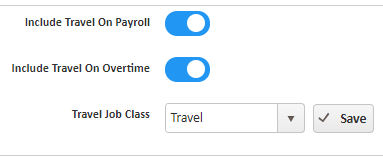
- Click Save
If the Include Travel on Overtime switch is turned ON
- All Travel entries that are pushed to Payroll will be added to the Regular Hour accumulations on Employee Payroll reports.
- If Travel Hours + Regular Hours > 40 hours per week = Overtime Hours will be added to the Employee Payroll reports.
- Travel Pay amount is automatically added to Regular Pay amount
If the Include Travel on Overtime switch is turned OFF
- Regular Hours > 40 hours per week = Overtime Hours are added to Employee Payroll reports
- Travel Pay is NOT added to Regular Pay
- Travel Pay must be added to Regular Pay & Overtime Pay amounts before finalizing the Total Payable Amount with your Payroll company
Weekly calculations start on the Overtime calculation day

Need Help With Your Settings?
Answer a few questions to help you decide which options are right for you.
1) Do you pay for Travel based on Distance or Time?
2) Is Travel Pay calculated at the same rate as the employees' default wage?
Share the answers with your Account Manager who can help ensure that you're set up for success.
1) Do you pay for Travel based on Distance or Time?
Distance
(i.e. $.50/Mile)
If you pay Travel by Distance, you must calculate the amount to pay out for Travel separately at the rate of your choosing.
- Export the Travel report and use simple Excel formulas to easily calculate the Travel Pay amount based on your desired Travel Pay Rate.
- Manually add the Travel Pay amount to the Regular Pay amount to get the Total Payable Amount before finalizing the paychecks with your payroll company.
If you pay Travel by Distance, we recommend turning the Include Travel on Payroll switch OFF.
Time
(i.e. $10/Hour)
If you pay Travel by Time, there are two additional questions to answer to decide your settings:
2) Is Travel Pay calculated at the same rate as the employees' default wage?
Yes
Answering Yes to this question means the employees' default wage rates are set to the Travel rate.
If you answered Yes to this question, we recommend turning the Include Travel on Payroll switch ON.
No
Answering No to this question means the Travel rate should be calculated at a different amount than the employees' default wages.
- Export the Travel report and use simple Excel formulas to easily calculate the Travel Pay amount based on your desired Travel Pay Rate.
- Manually add the Travel Pay amount to the Regular Pay amount to get the Total Payable Amount before finalizing the paychecks with your payroll company.
If you answered No to this question, we recommend turning the Include Travel on Payroll switch OFF.
3) Does the accumulation of Regular Hours and Travel Hours together cause an employee to reach Overtime?
Yes
Answering Yes to this question means that when you run payroll, the following statements are true:
-
- Regular Hours + Travel Hours = Total Regular Hours
- Total Regular Hours > 40 Hours per week = Overtime
- Regular Pay + Overtime Pay = Total Payable Amount
If you answered Yes to this question, we recommend turning the Include Travel on Overtime switch ON.
No
Answering No to this question means that when you run payroll, the following statements are true:
- Travel Hours are NOT added to total Regular Hours
- Travel Hour accumulations can NOT cause an employee to be paid Overtime
- Regular Hours > 40 hours per week = Overtime
- Travel Pay + Regular Pay + Overtime Pay = Total Payable Amount
If you answered No to this question, we recommend turning the Include Travel on Overtime switch OFF.
For more information, or to send in a request to the Janitorial Manager support department, use the red 'Help' button in the bottom right corner of any Help Desk article.
Comments
0 comments
Please sign in to leave a comment.