Adding Photos to Service Requests
Clients using the Customer Portal can add photos to their service requests. Adding photos helps the client communicate their needs to your team, and for your team to better understand the request.
Adding Photos to Service Requests as a Client
Viewing Photos in Customer Portal as a Client
Viewing Photos on Service Requests
Is your client unable to see the Services tab in their Customer Portal? Ensure that Services are enabled for their assigned location(s). Click here to learn more about enabling features in the Customer Portal.
Adding Photos to Service Requests as a Client
- Login to the Customer Portal using your portal user credentials.
- Clients will receive a link to their Customer Portal when their email is registered as a portal user. To access the Customer Portal from within Janitorial Manager, navigate to Customer > Manage Portal > Customer Portal Login.
- Select the Services tab at the top of the screen.
- Select the + Request Service button.
- Add the required information.
- Under Upload Images, select the Upload button.

- Select the photo(s) you want to attach to the Service request. Multiple photos can be selected at the same time.
- Select Submit Request to send the request to the Janitorial Manager portal.
Viewing Photos in Customer Portal as a Client
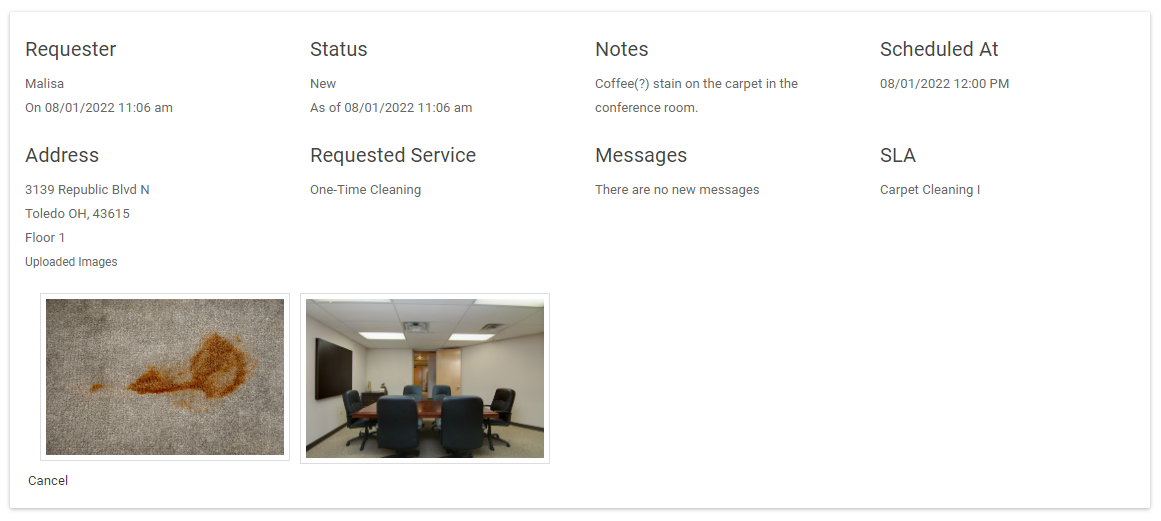
Clients are able to view photos that were added to past requests from the Customer portal.
- From within the Customer Portal, select the Services tab.
- Select View on a Service request.
- The filters near the top of the page can be used to sort by the time the request was submitted, the requester, or the status.
- Any photos that were added to the request will appear at the bottom of the request details.
Viewing Photos on Service Requests
- From within the Janitorial Manager web portal, navigate to Customers > Manager Portal.
- Select the Portal Activity subtab.
- Portal Activity can also be accessed by selecting the New Client Request link at the top right-hand corner of the page.
- Select the View Request button in the Actions column for the desired request.
- On the General tab, any photos added will appear under the Images section.
- Images can also be viewed separately from the Images subtab on the Service request.
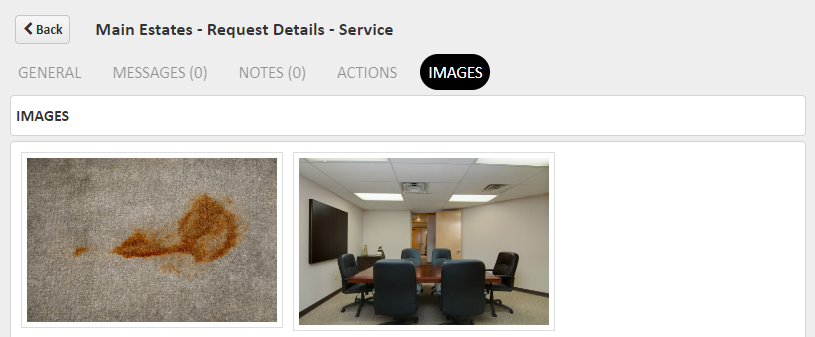
- Images can also be viewed separately from the Images subtab on the Service request.
For more information, or to send in a request to the Janitorial Manager support department, use the red 'Help' button in the bottom right corner of any Help Desk article.
Comments
0 comments
Please sign in to leave a comment.