JM Connect is the mobile app for Janitorial Manager. Most employees will need access to JM Connect to perform their daily tasks and manage operations.
Downloading & Installing
Check our Current Versions and Compatibility page to confirm your device is supported.
Permissions
JM Connect requires permissions for certain features to function properly.
Android Permissions
- Camera - Required for scanning QR Codes, Facial Recognition, and taking photos.
-
Files and Media* - Required for uploading photos and images.
- *Users cannot log in if Media permissions are denied.
Location
- Allow All the Time - Required for GPS Tracking.
- Use Precise Location - Enabling this will better pinpoint the user's GPS location.
Notifications
- Show Notifications - Required to receive push notifications.
iOS Permissions
Location
- Always - Required for GPS Tracking.
- Use Precise Location - Enabling this will better pinpoint the user's GPS location.
Notifications
-
Allow Notifications - Required to receive push notifications.
- We suggest enabling Alerts for the Lock Screen, Notification Center, and Banners and choosing 'Persistent' as the Banner Style.
Language Settings
Selecting a language on JM Connect will translate the UI (icons, headers, etc.).
- Open JM Connect.
- Before logging in, tap the 'Select Language' dropdown and choose a language.
Icons
Icon visibility is determined by Security Groups, User Type, and account features/settings. Some icons are only available to users with the Manager User Type, or have limited access for Employee.
The images show the view when assigning Security Groups on JM Connect.
(M) - Manager Only
(B) - Both Managers and Employees
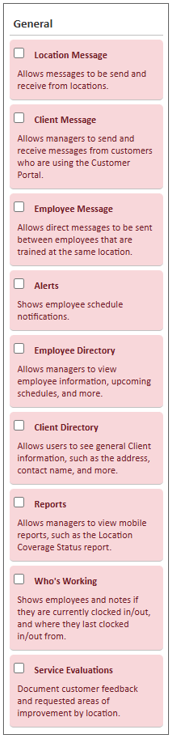 General
Location Message (B) - Allows messages to be sent and received from locations.
Client Message (M) - Allows managers to send and receive messages from customers who are using the Customer Portal.
Employee Message (B) - Allows direct messages to be sent between users that are trained at the same location.
Alerts (M) - Shows up to 60 days of timekeeping alerts.
Bell (B) - Shows up to 60 days of notifications.
Employee Directory (M) - Allows managers to view employee information, upcoming schedules, and more.
Client Directory (B) - Allows employees and managers to see Client address. Managers will see primary contact information.
Reports (M) - Allows managers to view mobile reports, such as the Location Coverage Status report.
Who's Working (M) - Shows employees and notes if they are currently clocked in/out, and where they last clocked in/out from. All employees and locations are visible regardless of location training status.
Service Evaluations (B) - Allows user to document customer feedback and requested areas of improvement by location.
Timekeeping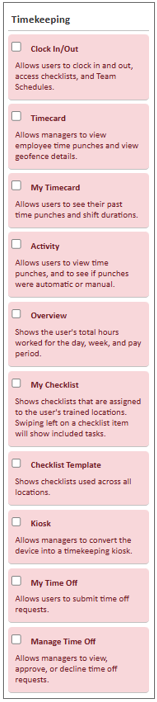
Clock In/Out (B) - Clock in/out and access location checklists.
Timecard (M) - Allows managers to view employee time punches and view geofence details.
My Timecard (B) - Allows users to see their past time punches and shift durations.
Activity (B) - Allows users to view their own time punches, and to see if punches were automatic or manual.
Overview (B) - Shows the user's total hours worked for the day, week, and pay period.
My Checklist (B) - Shows checklists that are assigned to the user's trained locations. Swiping left on a checklist item will show included tasks.
Checklist Template (M) - Shows checklists used across all locations.
Kiosk (M) - Allows managers to convert the device into a timekeeping kiosk.
My Time Off (B) - Submit time off requests.
Manage Time Off (M) - View, approve, or decline time off requests.
Work Management
Work Orders (M) - Shows all work orders in the system. Allows managers to create, edit, delete, and complete work orders.
Shows work orders that have reached the Earliest Start Date and are assigned to the user.
Supply Tracking/Inventory
Shows all supply requests. Swipe left to view more information and approve or delete requests.
Shows supply requests that the user submitted. Allows users to add, edit, and delete requests.
Quality Checks
Manage Quality Checks (M) - Displays all Quality Checks (QCs) and lets users create, edit, delete, email/download summaries, and tag employees.
Displays assigned Quality Checks, which can be completed from this screen.
Inventory Management System (IMS)
Supply Request Shows supply requests that the user submitted. Allows users to add, edit, and delete requests.
Approve Supply Request (M) - Shows all supply requests. Allows managers to fulfill supply requests.
Reconciliation Allows users to reconcile (cycle count) supply items at stock areas.
Express Order Allows users to create supply orders.
Allows users to Quick Receive (receive and stock) any pending supply orders.
Scheduling
Manage Schedule (M) - Shows all employee schedules, populated 45 days in advance. Allows managers to add, edit, or delete schedules.
My Schedule Shows employee schedules, populated 45 days in advance.
Calendar Allows users to see any upcoming schedules. Swiping to the left or the right will change the month.
QR Codes & NFCs/Areas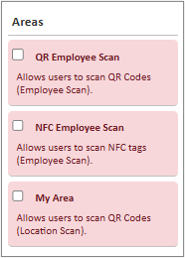
Scan Area Allows users to scan QR Codes (Location Scan).
Employee Scan Allows users to scan QR Codes (Employee Scan).
NFC Scan Allows users to scan NFCs.
My Areas Allows users to download areas to scan offline.
Calculators
Bid (M) - Allows users to create, edit, add area images, and delete bids.
Equipment Tracking System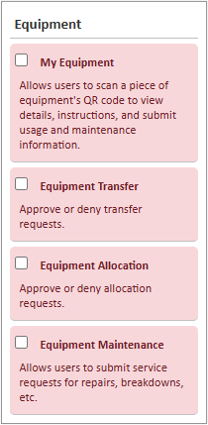
My Equipment - Allows users to scan a piece of equipment's QR code to view details, instructions, and submit usage and maintenance information.
Equipment Transfer - Approve or deny transfer requests.
Equipment Allocation - Approve or deny allocation requests.
Equipment Maintenance - Allows users to submit service requests for repairs, breakdowns, etc.
For more information or to send in a request to the Janitorial Manager support department, use the red 'Help' button in the bottom right corner of any Help Desk article.
Comments
0 comments
Article is closed for comments.