Mobile Bidding
The Quick Bid Calculator can be used via JM Connect. This tool allows you to enter key details about a location or building and quickly produce a suggested bid and proposal document.
*The Detailed Bid tool is not available on JM Connect. If you wish to calculate a detailed bid based on exact specifications for a location, you will want to use the Work Loading Calculator via the JM Portal.
Create A Bid
1. Log into JM Connect.
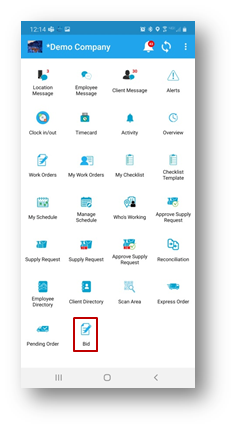
2. Click the Bid
3. The list of existing bids will be displayed.
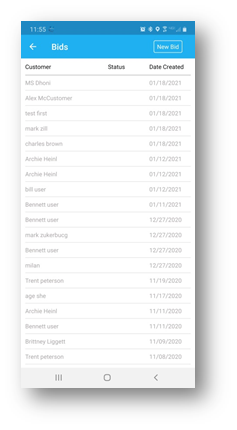
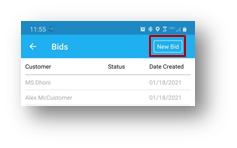
4. Click New Bid to begin a new Quick Bid.
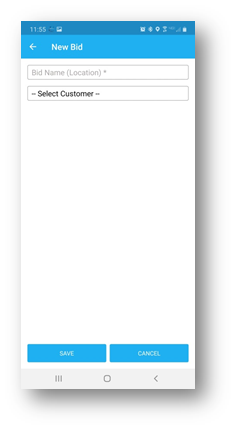
5. Key in a new Bid Name.
6. Select an Existing Customer or select Create a New Customer.
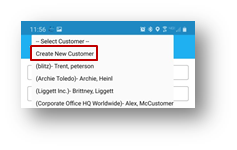
Creating a New Customer
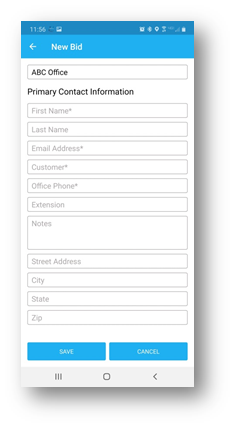
1. Complete the New Customer information.
2. Click Save.
3. Enter the Total Square Feet for the Location.
4. Select Template.
5. Click Save.
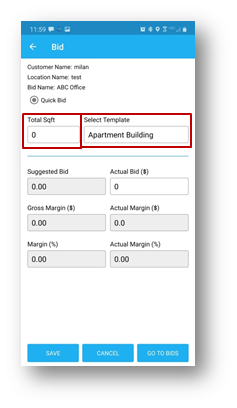
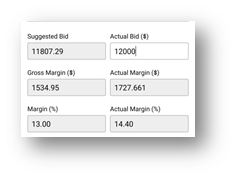
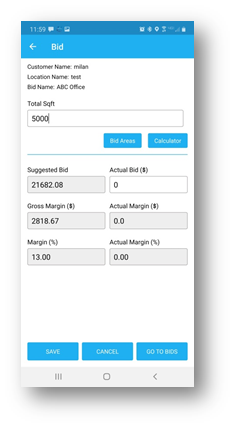
6. The Suggested Bid, Gross Margin($) and Margin(%) will be displayed.
7. You can optionally add a different Bid Amount (Actual Bid). This will display Actual Margin($) and Actual Margin(%)
Bid Areas
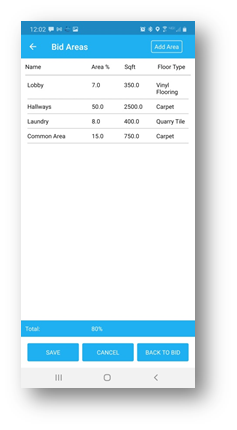
The Bid Areas are those that are to be serviced for the current building and can be edited to fit the facility.
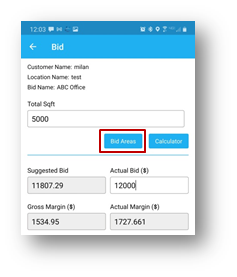
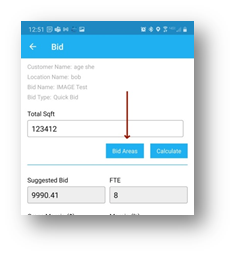
1. To modify or add to Bid Areas, click Bid Areas.
2. Bid Areas associated with the selected Template will be displayed.
Add Bid Area
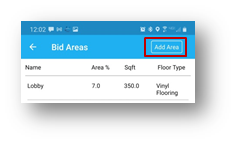
1. Click the Add Area Button
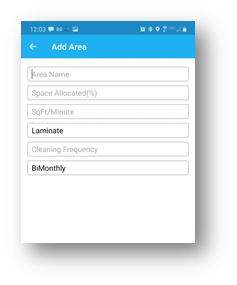
1. Add an Area Name.
2. Determine Space Allocated (%). Note the total Bid Area % cannot be greater than 100%.
3. Add cleaning rate as SqFt/Minute.
4. Select Floor Type.
5. Enter Cleaning Frequency.
6. Add Frequency Type.
7. Click Save.
Bid Area Actions
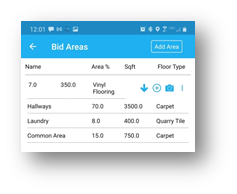
1. Swipe left on a Bid Area to view Action Items.
- Click the Arrow icon to move the Bid Area up or down in the list.
- Click the + icon to view Bid Area Activities for the Bid Area.
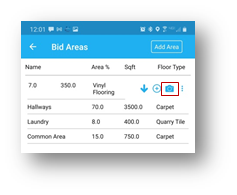
- Click the Camera icon to add images to the Bid Area.
- Click the three dots icon to View Bid Area Detail, Edit Bid Area, or Delete Bid Area.
Bid Area Activities
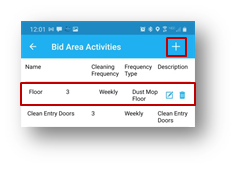
1. To add a Bid Area Activity, click the + icon
2. To edit or delete a Bid Area Activity slide left and click the Edit Pencil.
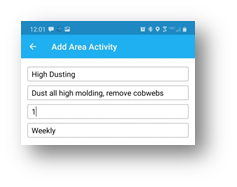
3. For a New Activity, enter an Activity Name, Activity Description, Cleaning Frequency and select a Frequency Type.
4. Then click Save.
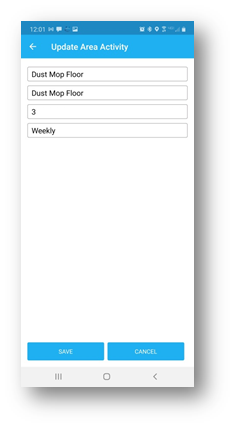
5. When editing an Area Activity, make necessary changes and click Save.
Bid Calculator
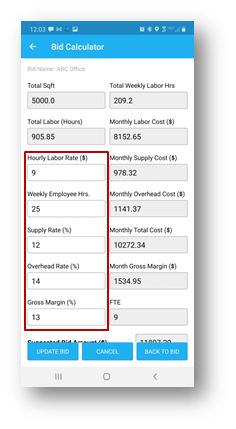
The Bid Calculator allows changes to the hourly labor rate, overhead, etc. which factors into the suggested bid.

Clicking the Calculator icon allows the manipulation of the following:
Hourly Labor Rate: This is the average hourly rate you pay the employees that work in this location/building/area/project.
Weekly Employee Hours: This is the average number of hours each employee works in this location/building/area/project.
Supply Rate: This is the average % of you spend on supplies for this location/building/area/project. If you are unsure of this number, the average baseline rate ranges from 2-5%.
Overhead Rate: This is the amount of overhead costs (office space and expenses, office supplies, your salary, office staff, trucks, etc.) as a percentage of your total company sales. If you are unsure of this number, the average baseline rate ranges from 15-20%.
Gross Margin %: If you are charging for your services, this is the gross margin you wish to make.
-while the $ sign is used in the calculator, it will adapt you the currencies you are using.
Add Images to A Bid
In JM Connect images can be added to a Bid at the Area Level. This can be accomplished from either the main Bid List or the Bid Area section of an existing Bid.
1. Slide left on an existing Bid.
2. Click the Picture icon to view photos that have already been added or to add to the general gallery.
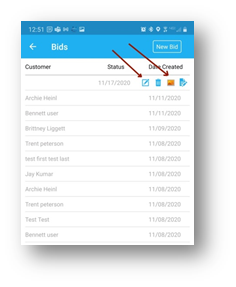
3. To add photos to a specific area, click the Edit icon on the desired Bid.
4. Then click Bid Areas.
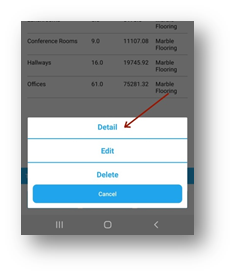
5. Slide left on the desired Bid Area and click the Three Dots.
6. Click Detail and then click Add Photo.
7. Select either Camera or Photo.
8. Images will be added to the Area and visible in the Bid.
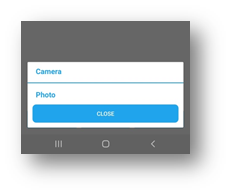
9. Alternately, slide left on a Bid Area and select the Camera Icon.
Edit An Existing Bid
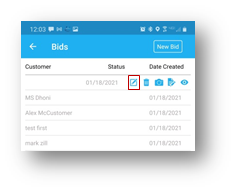
1. To Edit an existing Bid, swipe left on the desired Bid.
2. Click the Edit Pencil icon.
3. Make necessary changes to Square Footage, Bid Areas, Calculator or Actual Bid amount.
4. Click Save.
Bid Proposal
Bids created with JM can be emailed directly to customers. To attach an existing bid to a Proposal Template:
1. Swipe left on the desired Bid.
2. Select the Proposal icon.
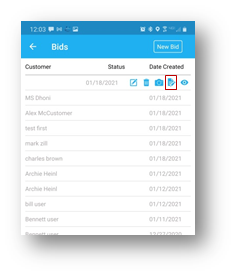
3. Select the desired Template from the dropdown.
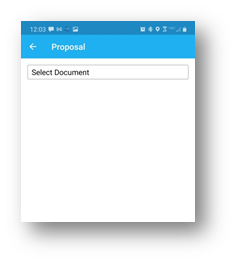
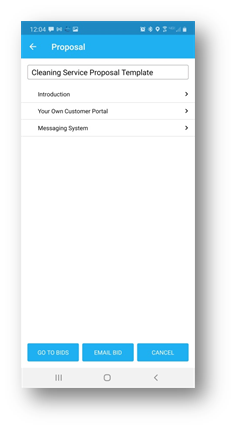
4. The sections of the selected Template are displayed.
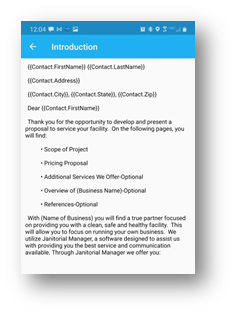
5. Click the arrow to the right to view the section.
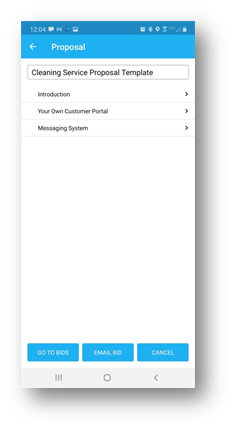
**Note: Proposal Templates can only be created and edited in the JM Portal.
Email A Bid
1. Click Email Bid when ready to send.
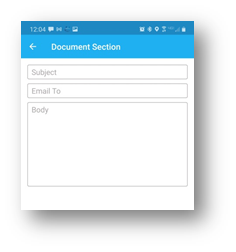
2. Complete the Email information.
3. Click Send.
Comments
0 comments
Please sign in to leave a comment.